The instructions below are still valid, however they were written before the Active Directory Login Monitor was created, and using that monitor is probably easier.
When a user logs into a Windows computer, or fails to logon, an event can be written to the Windows Event Log. This feature is built in to Windows.
The Event Log monitor in PA Server Monitor can tell you when one of these events occurs, thus alerting you to a
server logon, or a failed server logon. And because the Event Log monitor has a configurable monitoring cycle (the Schedule button in the lower right corner),
you can find out about the logon in nearly real time.
Create the Event Log monitor
Create an Event Log monitor on the server that you want to check. It's OK if there is already an existing Event Log monitor on the server -- you can have multiple monitors
of any type on a server, or you can combine the steps below into your existing Event Log monitor.
Ensure the "Security" Event Log in the lower left corner is checked
In the large grid, go to the "Microsoft Windows security auditing" source and check the Audit Success and Audit Failure boxes.
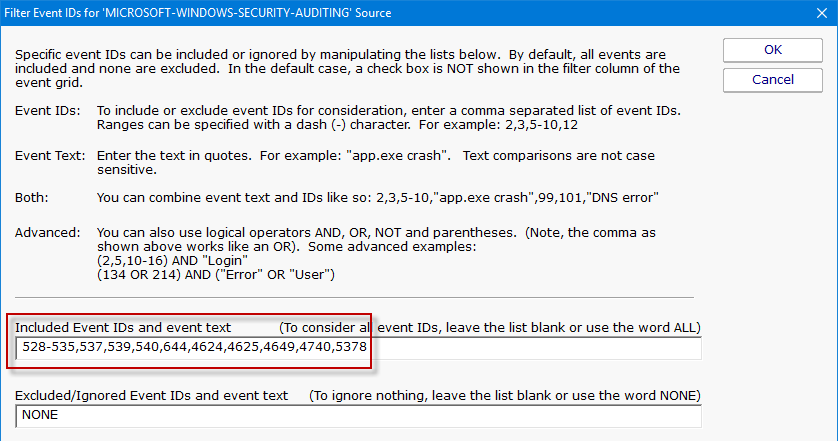
In the source line(s) above, click the box in the first column labeled Filters. We're going to set a filter for the following Event IDs:
528 - Successful Logon
529 - Logon Failure: Unknown user name or bad password
530 - Logon Failure: Account logon time restriction violation
531 - Logon Failure: Account currently disabled
532 - Logon Failure: The specified user account has expired
533 - Logon Failure: User not allowed to logon at this computer
534 - Logon Failure: The user has not been granted the requested logon type at this machine
535 - Logon Failure: The specified account's password has expired
537 - Logon Failure: An unexpected error occurred during logon
539 - Logon Failure: Account locked out
540 - Successful network logon
644 - User Account Locked Out
4624 - An account was successfully logged on
4625 - An account failed to log on
4649 - A replay attack was detected
4740 - A user account was locked out
5378 - The requested credentials delegation was disallowed by policy
To add the filter, add the following to the "Included Event IDs and event text" field:
528-535,537,539,540,644,4624,4625,4649,4740,5378
You can adjust the list of Event IDs that are being filtered, and add additional filters for watching for particular text (like a specific username for example).
To do that, just add more to the filter line.
Example Filters
Windows 2008 R2 Server Example:
If you are monitoring a Windows 2008 R2 Server and you want to alert on a logon success or failure, set the filter line to: (4624,4625,5461) AND ("Logon Type: 10" OR "Logon Type: 2")
Windows 2003 Server Example:
If you are monitoring a Windows 2003 Server and you want to alert on a logon success or failure, set the filter line to: (528-535,537,539,540,644) AND ("Logon Type: 9" OR "Logon Type: 3")
*Note: The Event IDs list in the above examples are not all inclusive and you should verify the Event IDs that you need to monitor for.
Now this Event Log monitor will alert on logons and failed logons to the server that it's monitoring. Add actions (the Email Action for example) to
specify how you want to be alerted.