- Solutions
-
- File Server: Ransomware Protection
- File Server: File Copy
- File Server: Audit File Access
- File Server: Storage growth reporting
- Licensing/Pricing
- Contact

The Hyper-V Monitor watches the running status status of virtual machines on a Hyper-V host server. It can automatically monitor all VMs on the host, and alert when a VM is created, deleted, starts or stops running or reboots.
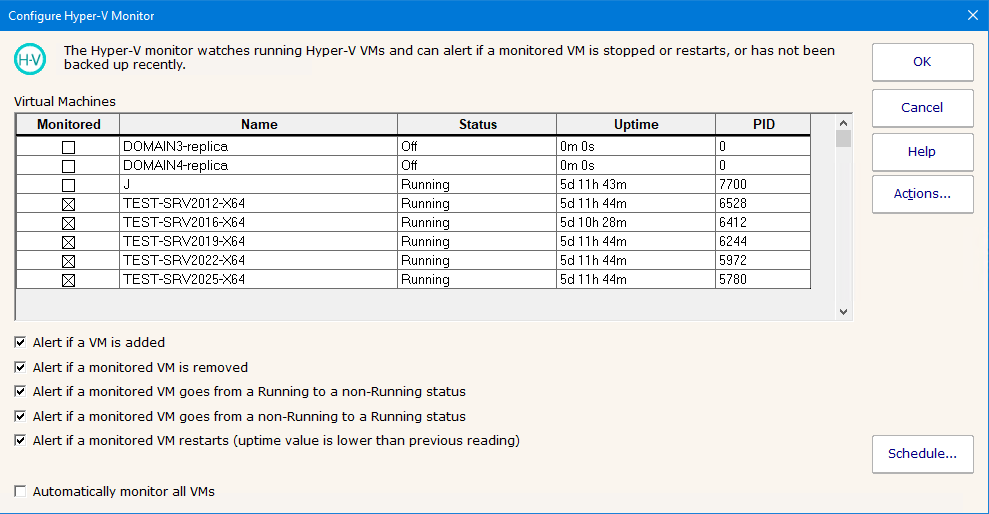
If the box in the right column is checked, that VM is 'monitored'. Most of the check boxes at the bottom of the configuratino window operate on VMs that are 'monitored', with the exception of the "Alert if a VM is added".
VMs can be in many states so those states are grouped into 'running' or 'non-running' states, and you can alert if a VM transistions from one such state to another.
Because the monitor works by polling the VM states, it's possible a state transition could happen in between the monitor runs. The "Alert if a monitored VM restarts" works by comparing the Uptime values, and alerts if the current Uptime value is less than the last seen Uptime value.
The following variables are available for use in action scripting and custom alert messages. Because this monitor evaluates multiple VMs, these variables are available per-row in the action variable list:
| Variable | Description |
|---|---|
| $Item$ | The VM name |
| $ItemType$ | Constant value of "VM" |
| $CurrentValue$ | Current state of the VM (Running, Off, etc) |
| $Extra1$ | Current Uptime for the VM |
If you receive an RPC error when the monitor runs, this often means the Windows RPC ports are being blocked by a firewall, or that the Hyper-V role is not installed or active on the target server.
Like all monitors, this monitor has standard buttons on the right for Adding Actions, setting Advanced Options and setting the Monitor Schedule.