- Solutions
-
- File Server: Ransomware Protection
- File Server: File Copy
- File Server: Audit File Access
- File Server: Storage growth reporting
- Licensing/Pricing
- Contact

This help page is for version 10.0. The latest available help is for version 10.2.
To monitor Azure resources, you first have to create an Azure App Registration in the Azure portal as shown below.
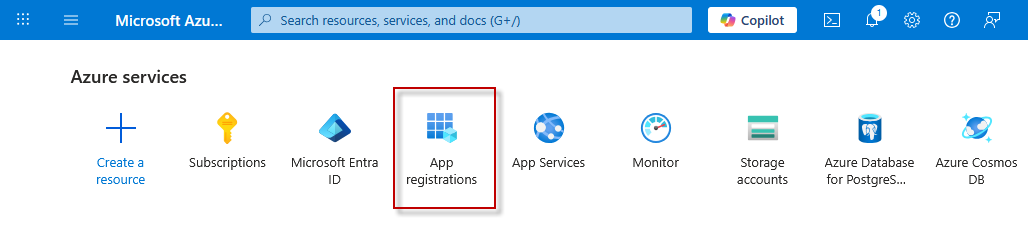

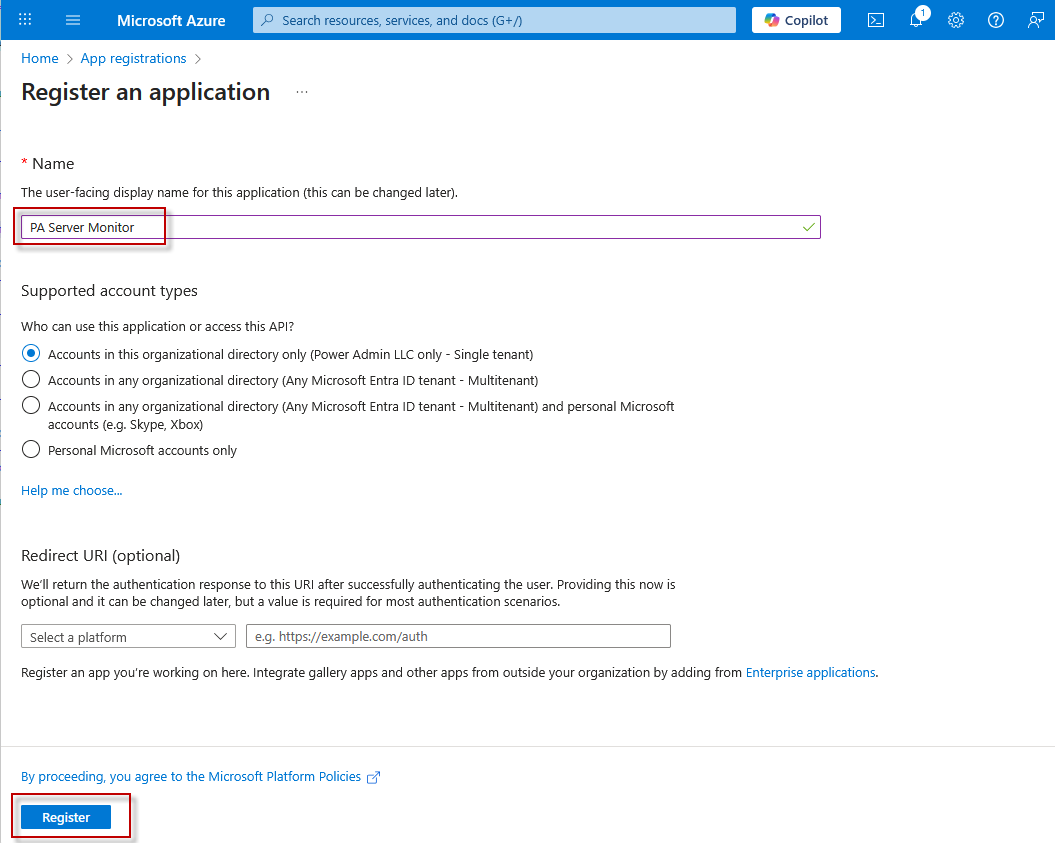
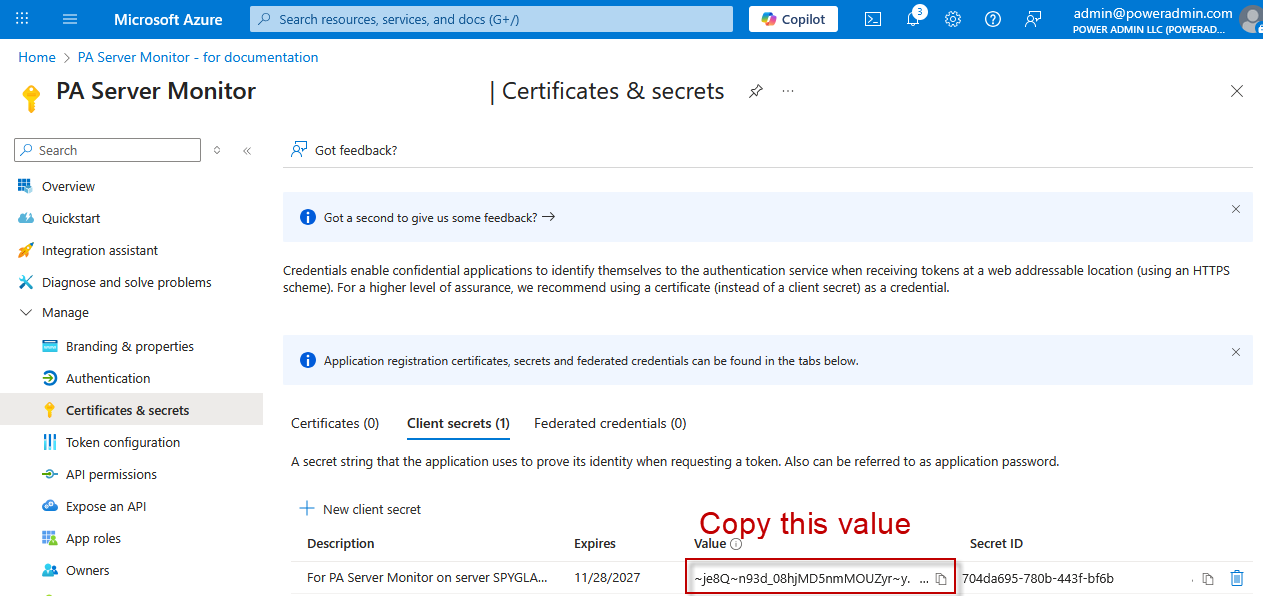
Once you get to the point above, you will create a Client Secret which is what will be entered into PA Server Monitor.
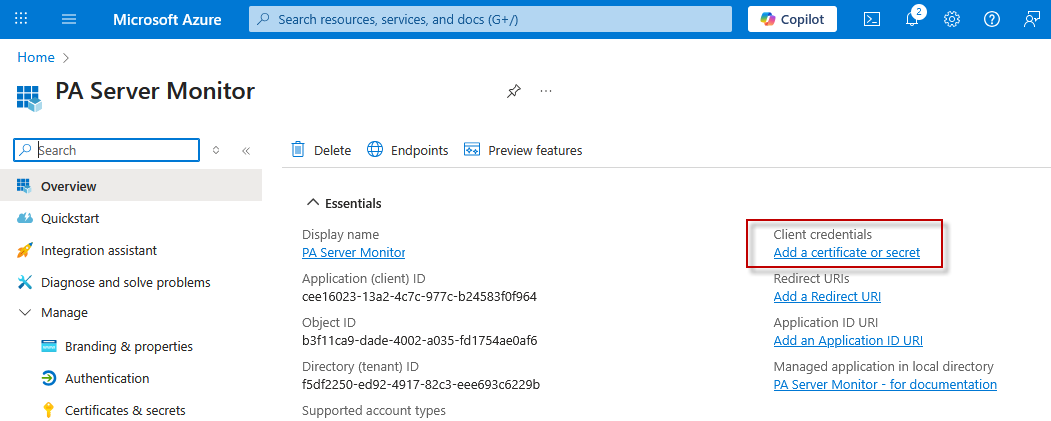
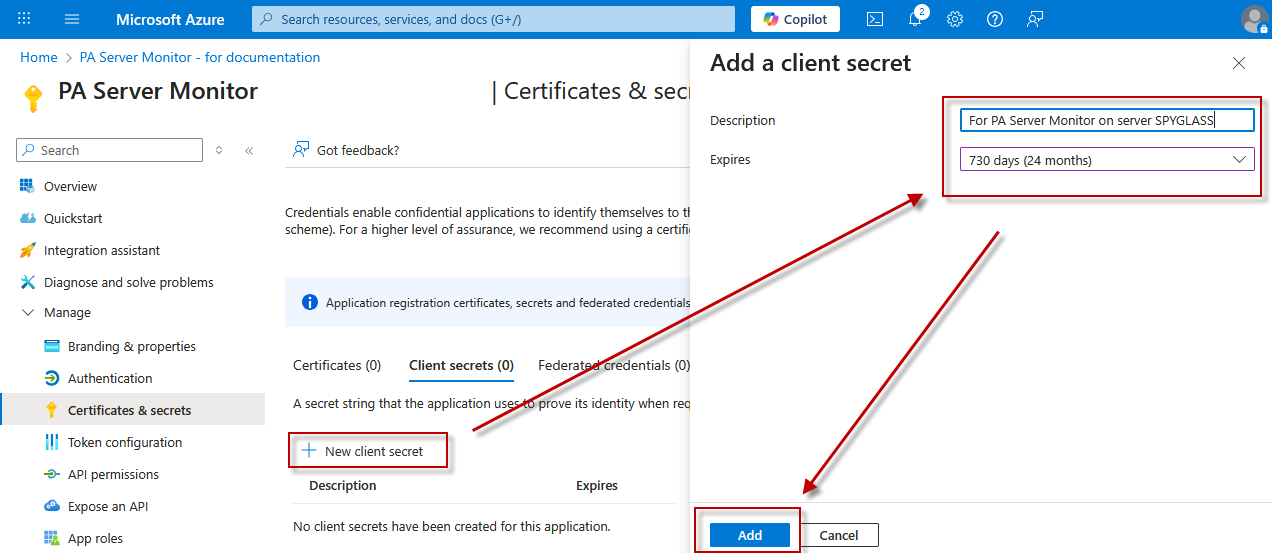
The Client Secret cannot be retrieved after leaving the screen that shows it, so be sure to copy it while there. If needed, you can delete the secret and create a new one.
No that you have a Client Secret you are ready to enter the credentials into PA Server Monitor. Once credentials are entered, you can select a resource to monitor.
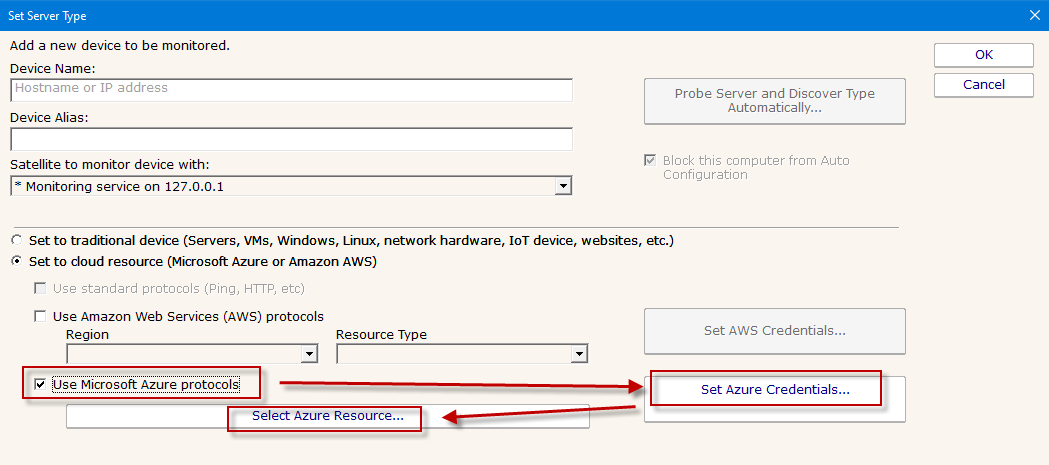
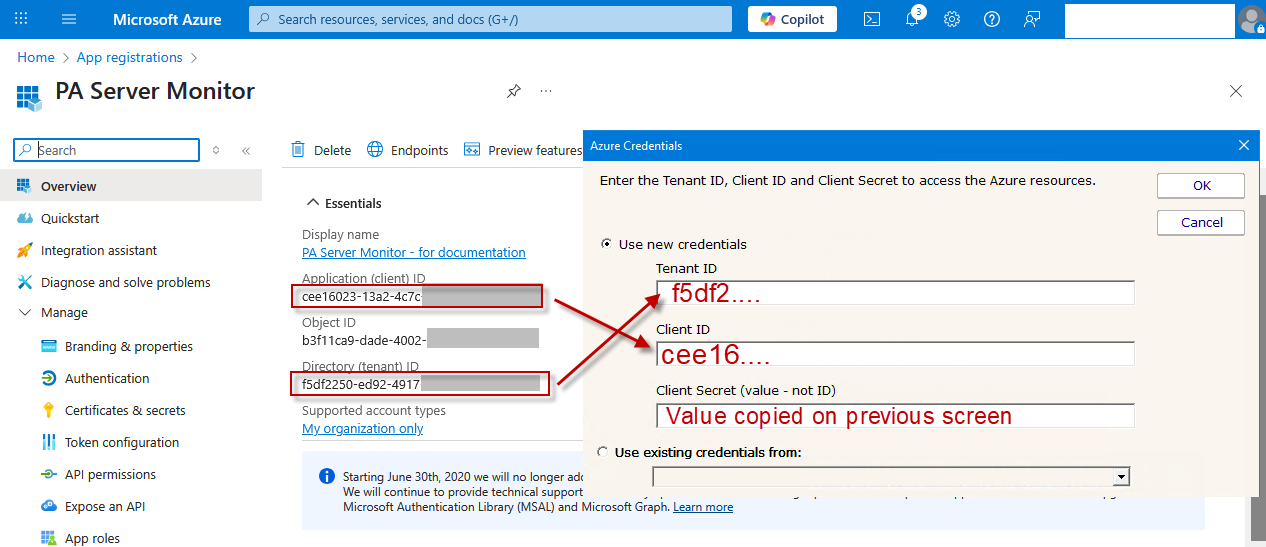
A single Client Secret can be used to monitor all Azure resources within a single Azure Tenant. When you add additional Azure resources, you could use the "Use existing credentials from" option to point to a set of credentials that were entered previously.
Once an Azure resource is added for monitoring, and it has credentials, you can create a Performance Counter to monitor and alert on the available metrics for that resource.
You can see and update current credentials in the system via the Credential Manager.