- Solutions
-
- File Server: Ransomware Protection
- File Server: File Copy
- File Server: Audit File Access
- File Server: Storage growth reporting
- Licensing/Pricing
- Contact

This help page is for version 10.0. The latest available help is for version 10.2.
The Server Time Monitor checks the clock accuracy of a monitored Windows server by comparing its current time to a reference time source. If the time difference exceeds a configurable threshold, the monitor fires actions.
Incorrect server time can cause a wide range of problems including Kerberos authentication failures, inaccurate log timestamps that make correlation difficult, backup schedule issues and certificate validation errors. This monitor helps you detect clock drift before it causes these problems.
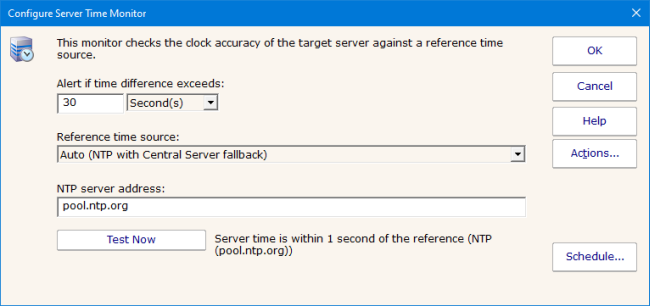
The threshold defines the maximum acceptable time difference between the target server and the reference source. You can specify the threshold in seconds, minutes, or hours. The default threshold is 30 seconds. If the server's clock differs from the reference by more than this amount, the monitor will fire actions.
The monitor supports three reference source modes:
The NTP server used when the reference source is set to Auto or NTP only. The default is pool.ntp.org which is a widely available public NTP pool. You can change this to an internal NTP server if your environment requires it.
The Test Now button performs an immediate time comparison using the current settings and displays the result in the dialog. This is useful for verifying that the NTP server is reachable and for seeing the current offset before saving the monitor configuration.
When the monitor runs, it:
The default monitoring interval is once per hour since clock drift is typically a gradual process.
The NetRemoteTOD API used to query remote server time requires Windows RPC connectivity. The target server must be accessible via RPC (typically port 445 or 139) for the monitor to retrieve the server's time. This is the same connectivity required by most other Windows-based monitors.
The following variables are available for use in action scripting and custom alert messages:
| Variable | Description |
|---|---|
| $Item$ | The reference time source used (NTP or Central Service) |
| $ItemType$ | Constant value of "TIME" |
| $CurrentValue$ | The measured time offset in seconds (negative means behind, positive means ahead) |
| $Limit$ | The configured threshold in seconds |
| $Extra1$ | ISO 8601 formatted reference time |
| $Extra2$ | ISO 8601 formatted server time |
Like all monitors, this monitor has standard buttons on the right for Adding Actions, setting Advanced Options and setting the Monitor Schedule.