- Solutions
-
- File Server: Ransomware Protection
- File Server: File Copy
- File Server: Audit File Access
- File Server: Storage growth reporting
- Licensing/Pricing
- Contact

This help page is for version 10.0. The latest available help is for version 10.2.
Currently Microsoft's SQL Server is the only database supported by this monitor.
The Database Server Monitor can be used to create individual Database Monitors. After a valid connection string is entered, the list of databases on the database server are displayed.
For help coming up with the proper connection string, please see:
https://www.connectionstrings.com/sql-server/
In this step, you do NOT need to specify a Database parameter yet. So one of the two connection strings below will probably work:
Using Trusted_Connection
Using Username/Password
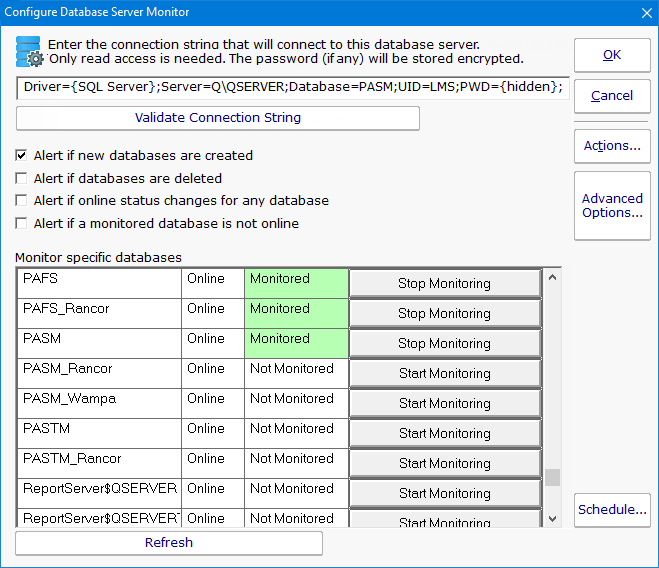
The check boxes on the monitor control what it will alert on, specifically it can alert when:
This monitor also shows which individual databases are being monitored, and lets you start or stop monitoring those databases via a Database Monitor.
When you start monitoring a new database, a Database Monitor is automatically created. After it is created, you can go straight to the Database Monitor to edit the configuration or even delete the monitor.
Like all monitors, this monitor has standard buttons on the right for Adding Actions, setting Advanced Options and setting the Monitor Schedule.