- Solutions
-
- File Server: Ransomware Protection
- File Server: File Copy
- File Server: Audit File Access
- File Server: Storage growth reporting
- Licensing/Pricing
- Contact

When you first connect to a server using self-signed certs, Internet Explorer will display that there is a problem with the website's security certificate. Select the "Continue to the website (not recommended)" link.
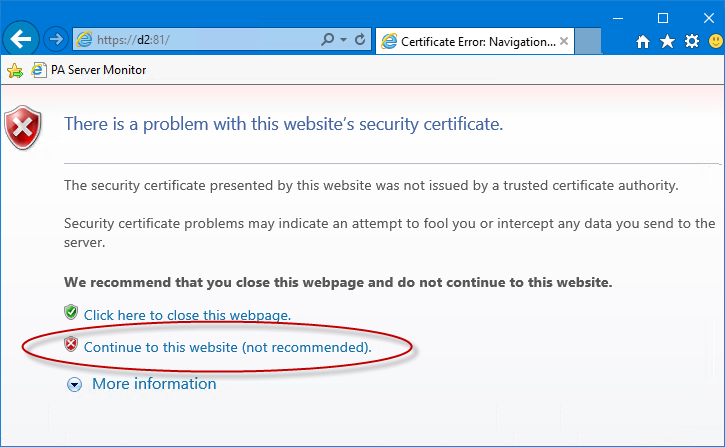
When you continue on, a certificate error is shown similar to the following:

If you click the "Certificate Error" text in the address bar, you'll see an explanation with a "View certificates" link at the bottom. That's our goal -- to view the certificate.
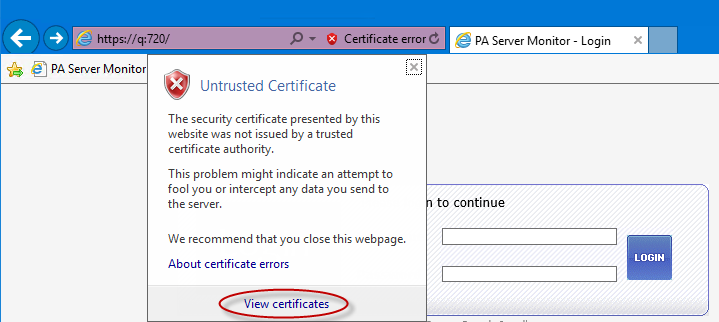
When you click "View certificates", a dialog will display information about the SSL certificate. The Certifying Authority (also called a CA Root) certificate need to be installed. Click the "Certification Path" tab, and then select the top certificate shown (THIS IS CRITICAL). That is the CA Root. Note that the certificate names will be different on your computer than what is shown in the screenshot below.
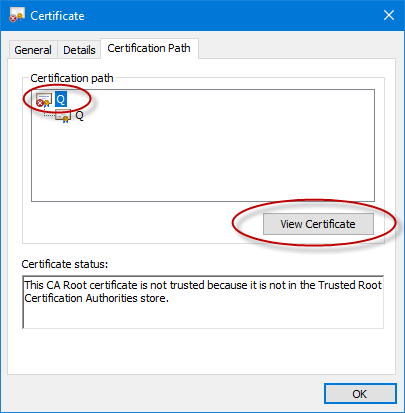
Click the "View Certificate" button near the middle of the dialog. A new dialog opens which shows the CA Root itself. This is the one we need to install. Near the bottom of the new dialog is a button to Install Certificate.
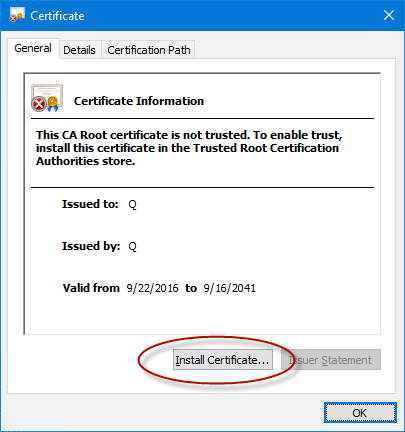
When you click "Install Certificate", a Certificate Import Wizard will start which will help you install the certificate. Select the "Local Machine" option to install the certificate on the machine for all users.
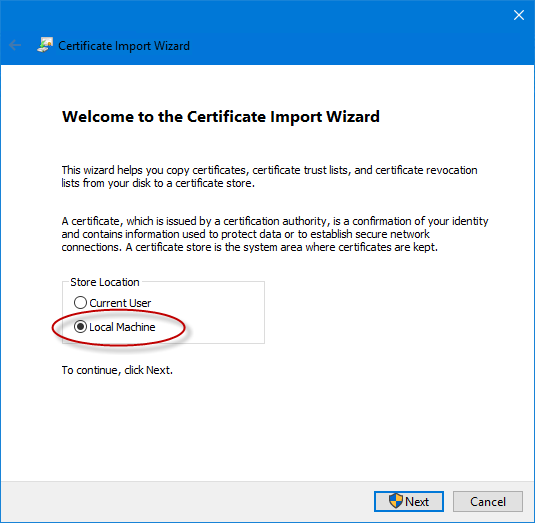
When you click Next, the Certificate Import Wizard will allow you to select the install location of the certificate. It's important to install the CA Root certificate into the "Trusted Root Certification Authorities".
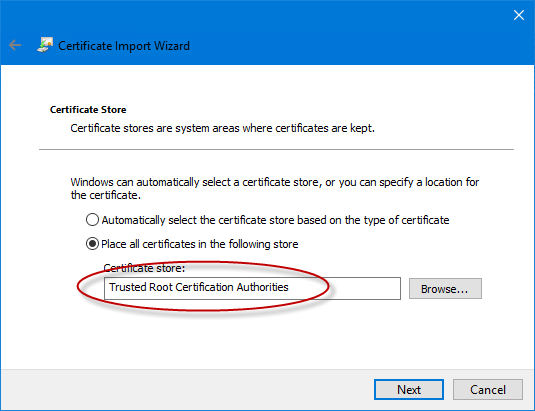
Click Next until you get to the Finish button. Once you click Finish, a final confirmation dialog (Security Warning) is displayed to make sure you want to add the new cerificate (this dialog helps insure that a human is doing this action and not some malware).
Now that you've finished the steps above, Internet Explorer will accept the new SSL certificates without displaying an error.
Comments on this help page? Please contact us with suggestions
“We appreciate all your hard work and dedication to getting the problem resolved. Wish more companies had the support that you guys offer.”
Todd W., Beasley Allen, USA