- Solutions
-
- File Server: Ransomware Protection
- File Server: File Copy
- File Server: Audit File Access
- File Server: Storage growth reporting
- Licensing/Pricing
- Contact

When FireFox encounters a self-signed cert, it won't load the page. You might see an error like the one below.
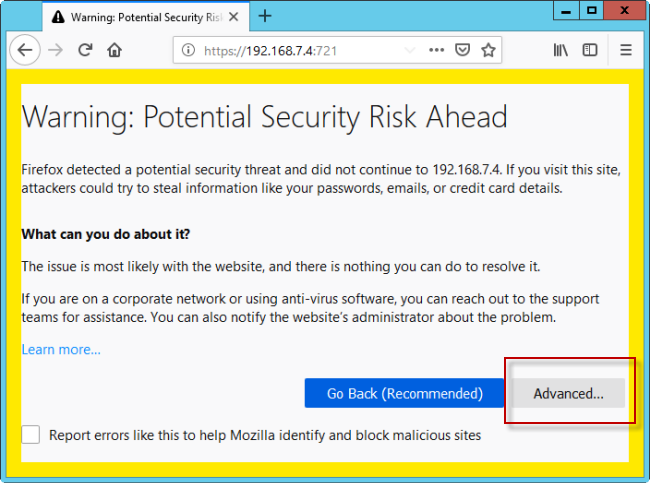
Click the Advanced button. Additional information will be shown on the page. Check to see what websites the certificate is actually for (top red box in the image below). Is it similar to the website you are trying to visit? This is where you need to make a judgement call about whether you are really at the correct site.
If the site you are going to is banking, investments, or otherwise about your money, health or private information, and you see an alert, we suggest you DO NOT CONTINUE.
If the website is not as important, you can choose to click the "Accept Risk and Continue" button. Firefox will remember this choice and not prompt you about the website again.
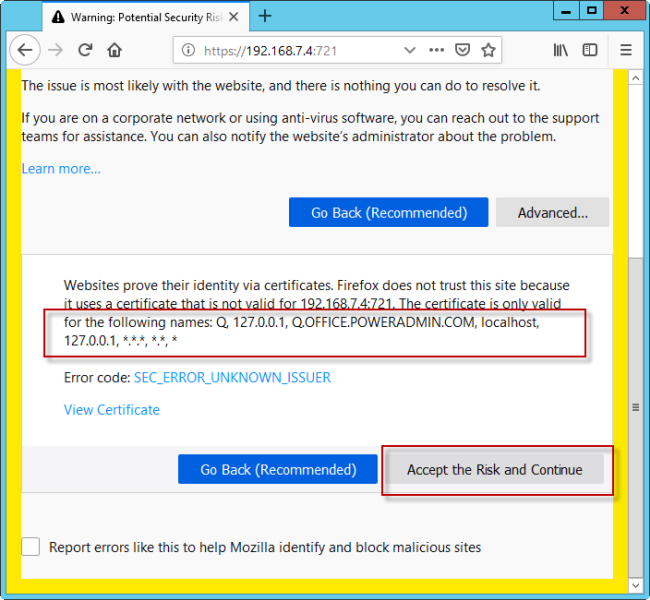
If your server is accessible via different names or additional IP addresses (perhaps via an external and internal IP address) then the URL won't match the internal server name and the browser will give a Mismatched Address error. This is the same error that occurs if you take the SSL certificate from one server and put it on a different server
One fix would be to go back and add another Security Exception for additional URL. Optionally, you could also add an entry to your hosts file that maps the server's name to the IP address that you are using to access the server. That will enable the URL to match the certificate.
Comments on this help page? Please contact us with suggestions
“I want to thank you for an excellent product... We couldn't be happier with [PA Server Monitor].”
Ryan R., Top Gun Sales Performance, USA