- Solutions
-
- File Server: Ransomware Protection
- File Server: File Copy
- File Server: Audit File Access
- File Server: Storage growth reporting
- Licensing/Pricing
- Contact

WMI comes installed on all of Microsoft's modern operating systems. What this page will describe is how to enable remote access to WMI. The following steps should only take a minute or two of your time.
This setting is usually all that needs to be changed to get WMI working. (Steps 2 and 3 are typically not needed, but they might be in some circumstances)
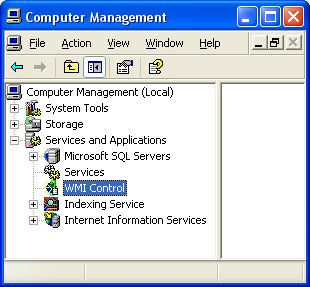 4. Select the Security tab
5. Press the Security button
4. Select the Security tab
5. Press the Security button
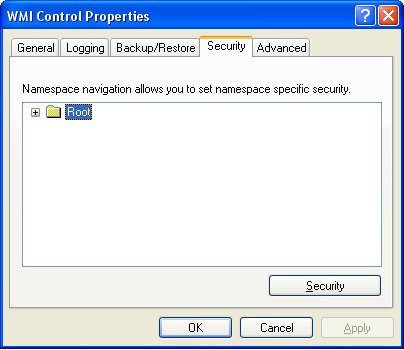 6. Add the monitoring user (if needed), and then be sure to check Remote Enable for the user/group that will be requesting WMI data.

At this point go back and see if this fixes the problem. It might take a couple of minutes for the reports to re-generate.
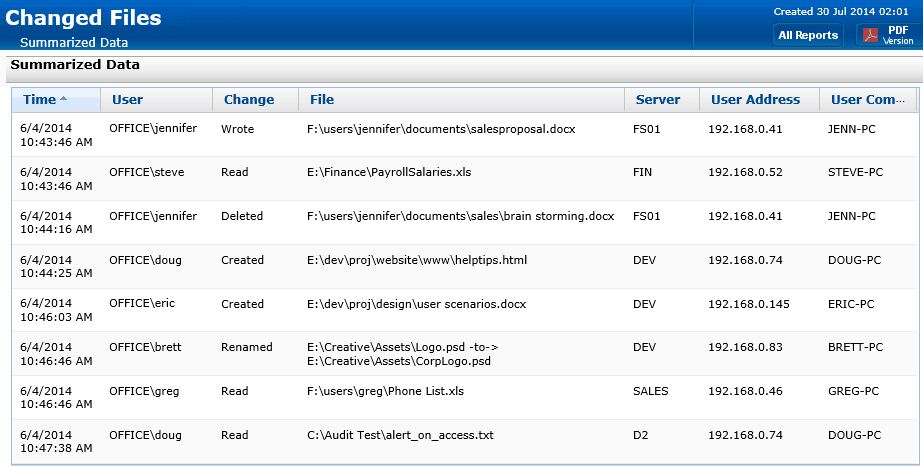
Or accidentally moving folders?

PA File Sight knows who did it, and what computer they used.
No signup needed
No credit card needed.
 Learn more ...
All users (including non-administrators) are able to query/read WMI data on the local computer.
For reading WMI data on a remote server, a connection needs to be made from your management computer (where our monitoring software is installed) to the server that you're monitoring (the target server). If the target server is running Windows Firewall (aka Internet Connection Firewall) like what is shipped with Windows XP and Windows 2003, then you need to tell it to let remote WMI requests through1. This can only be done at the command prompt. Run the following on the target computer if it is running a Windows firewall:
netsh firewall set service RemoteAdmin enable
If the account you are using to monitor the target server is NOT an administrator on the target server, you need to enable the non-administrator to interact with DCOM by following the simple steps listed here.
Follow the steps for:
If the above steps didn't help, we recommend installing the WMI Administrative Tools from Microsoft. This includes a WMI browser that will let you connect to a remote machine and browse through the WMI information. That will help to isolate any connectivity/rights issues in a more direct and simple environment. Once the WMI browser can access a remote machine, our products should be able to as well.
WMI Administrative Tools:
http://www.microsoft.com/downloads/details.aspx?FamilyId=6430F853-1120-48DB-8CC5-F2ABDC3ED314&displaylang=en
From reports we're receiving from the field, it appears UAC needs to be disabled for remote WMI queries to work. With UAC running, an administrator account actually has two security tokens, a normal user token, and an administrator token (which is only activated when you pass the UAC prompt). Unfortunately, remote requests that come in over the network get the normal user token for the administrator, and since there is no way to handle a UAC prompt remotely, the token can't be elevated to the true-administrator security token.
References
1. https://learn.microsoft.com/en-us/windows/win32/wmisdk/connecting-to-wmi-remotely-with-vbscript?redirectedfrom=MSDN“The best decision last year for me and my company was -- PA Server Monitor -- Thank you for the good job on this product. I really love it !”
Oliver B., Bartling IT, Germany