- Solutions
-
- File Server: Ransomware Protection
- File Server: File Copy
- File Server: Audit File Access
- File Server: Storage growth reporting
- Licensing/Pricing
- Contact

PA Server Monitor runs on a Windows computer and monitors the condition of servers and other equipment on your network. The following graphic shows the basic structure of a network that is using PA Server Monitor.
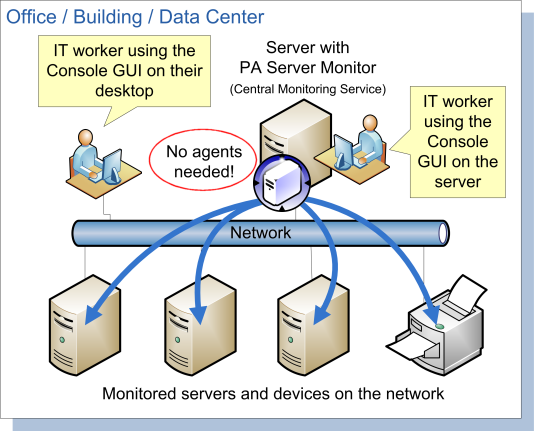
PA Server Monitor is composed of two parts: a graphical user interface that called the Console, and a background process called the Central Monitoring Service. You see the Console when you launch PA Server Monitor from the desktop. The Central Monitoring Service is invisible and has no user interface of its own.
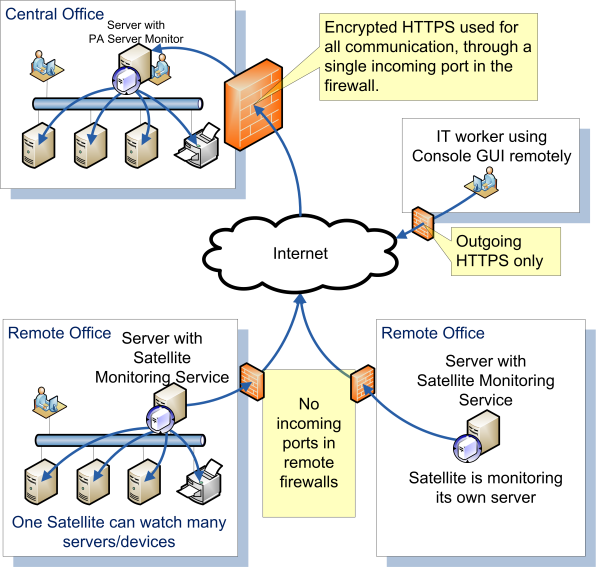
The Central Monitoring Service is the part of the product that performs the monitoring of the local network. It is the hub that Remote Consoles and Satellite Monitoring Services connect to. The service is set up to run automatically when Windows starts. The Console does not need to be running in order for monitoring to take place.
The Satellite Monitoring Service (or just Satellite for short) is an optional additional monitoring engine. It can run monitors just like the Central Monitoring Service. Satellites are typically installed where the Central Monitoring Service doesn't have access (on the other side of a firewall in a corporate environment, or at a remote location across the Internet.
NOTE: The Satellite Monitoring Service is only available in Ultra product editions.
PA Server Monitor is based on the concepts of Groups, Computers, Monitors, Actions and Reports. These run on the Central Monitoring Service and/or a Satellite Monitoring Service.

Groups hold computers and optionally other groups. They are for your use to organize the computers that you monitor. You can drag and drop computers and groups into groups using the Console.
Adding new computers consists of right-clicking on a Group and choosing Add New.., or using Smart Config.
Group status reports show the overall status of computers within the group.
Computers represent a server or device on the network -- something that has an IP address. A Computer specified which credentials should be used when monitoring the device, whether it is running Windows or not and other settings. Monitors are created and attached to computers.
Server status reports are generated automatically and show the overall status of the server/device.
A Monitor periodically checks a computer resource and optionally compares the measurement to a threshold value that you set. Most monitors also write the measurement to a database so live and historical reports can be run.
When a measurement is outside the threshold (low disk space for example), or an event happens that you have indicated interest in (a file is accessed), Actions are fired.
Monitors are defined to check the computer that they are attached to. If you want to monitor a different server/device, create that new server/device (Computer), and create a new monitor to watch it. Multiple monitors of the same type can optionally be created for the same computer.
If you have remote computers being monitored by a Satellite Monitoring Service, configuring monitors for those remote servers will be as easy as if they were on the local LAN.
An Action is run in response to monitor findings. Examples of Actions are sending e-mail, execution of a script, or writing text to a log file.
Actions are defined once, and can be referenced by many monitors in the system. Multiple actions of the same type can also be created (ie different e-mail actions to notify different people).
Data from the databases is shown via reports. There are pre-defined status reports for servers, and summaries for groups of servers. In addition, you can create ad hoc reports to view historical data. If a report is used on a regular basis, you can create a Scheduled Report.