- Solutions
-
- File Server: Ransomware Protection
- File Server: File Copy
- File Server: Audit File Access
- File Server: Storage growth reporting
- Licensing/Pricing
- Contact

There are two ways to add computers/devices to the system to be monitored: individually and many at once. Both options are described below.
The easiest way to add many computers/devices to the system at once is to use the Smart Config process. This will let you paste a list of machine names or IP addresses that you want to monitor. You can also press the Discover button to help get that list. The program will allow you to use the Automatic Configuration or the Customize and apply specified monitors options to configure your monitors. More information on Automatic Configuration.

When adding new servicers or devices to be monitored make sure to add them to a group using the Owning Group option.
If you are using Satellites it's very important to make sure that the Satellite you want to monitor the new servers is selected in the "Monitored by". If not using Satellites, this box will select the Central Monitoring Service.
The Smart Config process will add the new computers to the top Servers/Devices group. You can use Bulk Config to easily move many servers at once to different groups.
See Smart Config for more detailed information.
You can manually add a single computer to be monitored by right-clicking on any group in the left navigation pane in the Console.

Doing so will first show the dialog below to collect the server name.
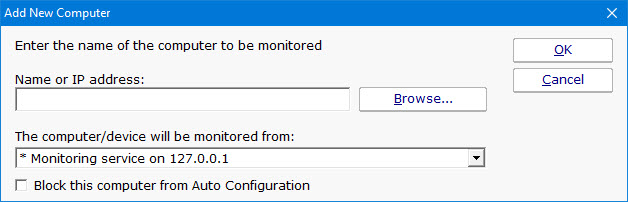
"The computer/device will be monitored from" lets you specify whether the Central Monitoring System or a remote Satellite will be monitoring the device. Naturally the monitoring system that has access to the device should be chosen.
The next step is to tell PA Server Monitor what type of server/device is being added. This helps the product know which protocols to use when communicating with the server/device. The dialog below is how you indicate this. The buttons on the right let you give device-type credentials (ie Windows username/password, SNMP community string, etc). The button also indicates the credentials currently being used.

Select the "Set to traditional device" for adding most servers/devices, and "Set to cloud resource" if adding something in AWS or Azure to be monitored.

When adding an AWS resource, check the "Use Amazon Web Services (AWS) protocols". Then give the AWS credentials.
Next choose the Region and the Resource Type. The Device Name for the resource will be the ID, and a message on the right will give further details.
To add Azure resources for monitoring, check the "Use Microsoft Azure protocols", and then add Azure credentials.
Once credentials are added, you can click the Select Azure Resource button and you will be shown a list of all resources within the account split up by region and resource type to choose from. Selecting a resource will fill in the Device Name, and give a default Device Alias which you can change.
You can click the "Probe Server and Discover Automatically" to have PA Server Monitor determine which protocols the server/device responds to. You may still need to specify credentials though.
If you want to get back to this dialog later, it's always available by right-clicking on the server/device and going to Type & Credentials > Set Server Type.
For more information on setting individual credential types, see the links below.