- Solutions
-
- File Server: Ransomware Protection
- File Server: File Copy
- File Server: Audit File Access
- File Server: Storage growth reporting
- Licensing/Pricing
- Contact

The Event Log Monitor can monitor one or more event logs on the system, including the standard Application, Security and System logs as well as custom event logs. You have complete flexibility in specifying which types of events are important to you and which types you'd like to ignore. In addition, you can manually add dynamic event sources (event sources that register themselves, add an event, and then unregister themselves).
Watch the training video How to Monitor Event Logs for Errors.

The large Event Source grid shows all currently registered Event Log sources. Next to each source are six columns: a special filter column, and the five different event types. Place a check next to the event source of the event type that you want to watch for.
The special "=All Event Sources=" at the top of the list can be used to easily check events from all sources in a column.
Note: If the target server is monitored by a Satellite, the Event Log sources will be retrieved from the Satellite during the configuration step.
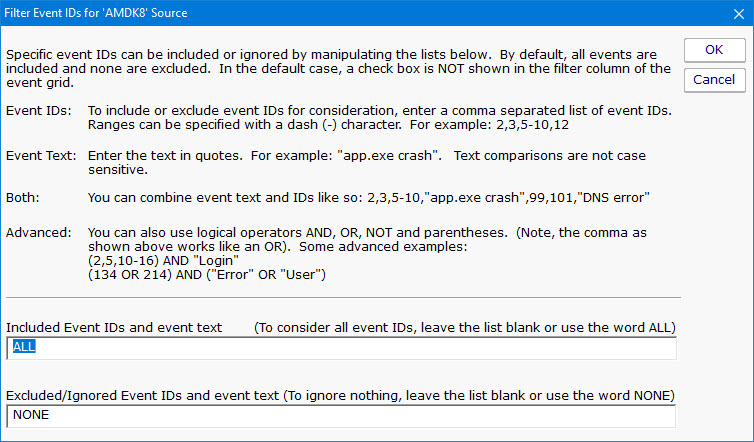 If you want to filter the events by ID or by text (to either include or exclude events), check the box in the "Event ID & Text Filters" column. The dialog
shown above will be displayed allowing you to enter event IDs or event text that should be filtered on.
If you want to filter the events by ID or by text (to either include or exclude events), check the box in the "Event ID & Text Filters" column. The dialog
shown above will be displayed allowing you to enter event IDs or event text that should be filtered on.
Note: Even if you have an Event ID or text filter defined, you still need to have a check in at least one of the Event Type columns to control which types of events will have the filter applied.
To learn how to audit for logons and logon failures using additional filtering read our HOWTO page Audit Logons
Some sources register themselves with the system just long enough to add an event, and then unregister themselves, which causes them to not show up in the Event Sources list. If you want to monitor such an event source, you can press Add Event Source and manually add the name of the event source. Events that are manually entered will be shown at the top of the list and have a * added to their name. You will then be able to select which event types you'd like to monitor against that source.
If you've entered manual sources but find that you no longer need them, you can press the Clear Manual Sources button to delete your manually entered sources.
Some Event Sources aren't what they appear to be. To see the true Event Source name, look at the Event's details. When adding a custom Event Source, you need to add the real name. After seeing what the real name is, you might find it is already in the list.

The Test Event button allows you to create an event in the event log (possibly mimicking one you're trying to target) to see if the current configuration will pick it up. After you create the event, wait a few moments for the running system to find the new event.
Note: Test events can only be created in the Application event log, and cannot be created with the Security source (only the operating system can create events with that source).
The Training option in Advanced Monitor Options is particularly useful for this monitor type. You can tell the monitor to watch a computer for a few days and automatically ignore the events that occur within that time frame (this assumes the server is healthy and behaving normally during the monitoring period). You can always go back and remove any filters that are created.
Most monitors run periodically and report everything they find in a single alert/message at the end of the run. This monitor has the additional option of sending each matching event as a separate email alert (if an email action is attached to the monitor). This is done by checking "Report each matching event separately".
Like all monitors, this monitor has standard buttons on the right for Adding Actions, setting Advanced Options and setting the Monitor Schedule.

The Event Log monitor supports running reports on all of the matching events that have happened. You can filter the reported events on event source, type, date range, etc.
If you want to watch for a specific event, like a backup succeeded event, and be alerted if the event does NOT occur, create an Event Validator monitor.