- Solutions
-
- File Server: Ransomware Protection
- File Server: File Copy
- File Server: Audit File Access
- File Server: Storage growth reporting
- Licensing/Pricing
- Contact

Thank you for choosing PA Server Monitor. The following documentation offers help in installing, configuring and using PA Server Monitor. These topics are also shown in the help menu at the left of the screen.
If you are looking for something specific, try the Search box at the top of the page.
Every installation has a central monitoring service installed on a Windows Server or Workstation. This monitoring service can monitor computers and devices (including itself) on the local network.
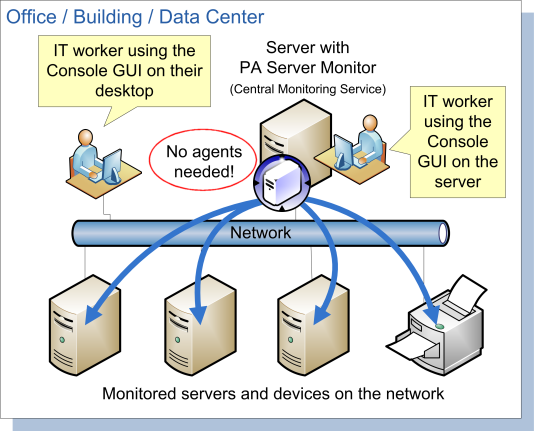
The first installation will also include a Console GUI application for working with and configuring the central monitoring service.
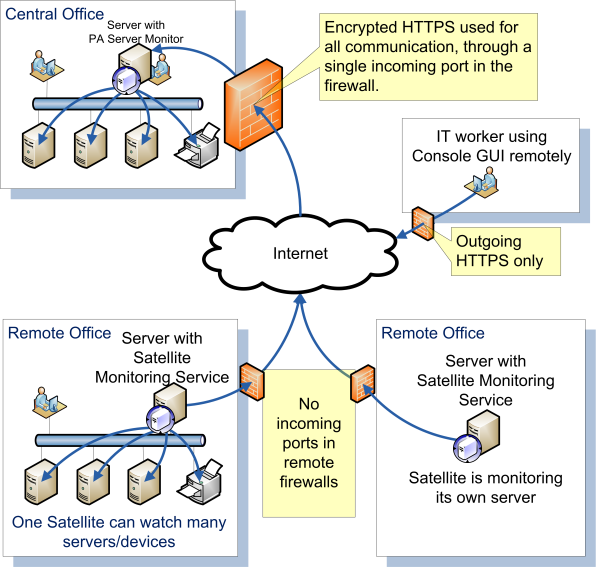
In addition to monitoring servers and devices on the local network, Ultra editions of PA Server Monitor can also monitor remote servers and devices corporate firewalls, and across the Internet without needing a VPN. This is accomplished by installing a Satellite Monitoring Service on a single server or workstation at the remote site. The Satellite will then monitor itself (the computer it is installed on) and/or other servers and devices on the local network at the remote site. Alerts and monitoring data will be sent back to the Central Monitoring Service via SSL-encrypted HTTP.
The first step to using PA Server Monitor is to install the Central Monitoring Service.